Fund Equity
How to Run the Fund Equity Report (UGLC016 A-E)
The fund equity report, also known as the 016 report, has several variations in PeopleSoft Finance. They only differ by presentation of data. All report variations display:
- Beginning fund equity balances
- YTD revenue activity for the fiscal year
- YTD expense activity for the fiscal year
- YTD adjustment activity for the fiscal year
- Current fund equity balance
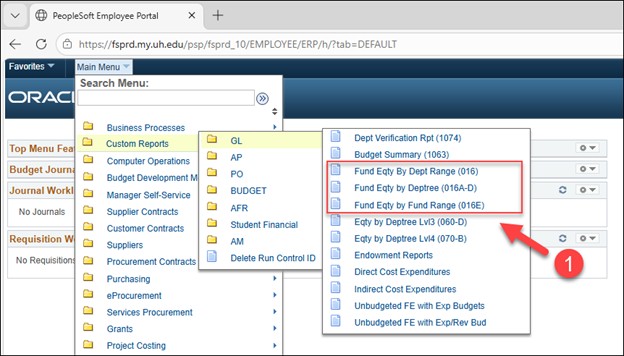
There are three primary 016 report links under the Custom Reports - GL menu
1) Fund Equity by Dept Range (016)
Provides fund equity balances for a specific department or range of departments
2) Fund Equity by Dept Tree (016A-D)
Provides fund equity balances for a specific Dept ID and/or fund range
016A = Fund Equity by Department Node
016B = Fund Equity by Dept/Fund Group
016C = Fund Equity by Fund Group/Cost Center
(this version is viewed as the most useful for utilization by departments)
016D = Fund Equity Summary by Fund
3) Fund Eqty by Fund Range (016E)
Provides fund equity balances for a specific fund or range of funds.
The following example will be using the 016E report.
- NAVIGATION TO THE 016 REPORT (FUND EQUITY REPORT):
Custom Reports > GL > Fund Equity by Fund Range (016E)
-
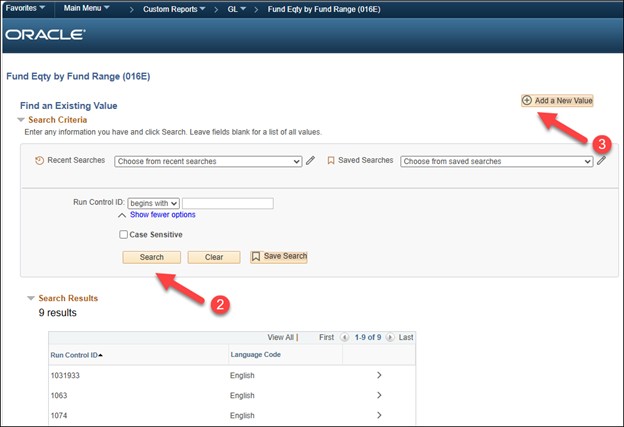
- Click Search on the Find an Existing Value tab to select a Run Control ID to open the report parameters page.
-
. To add a new run control: select the Add a New Value tab. Enter a name for the run control, and then click the Add button.
-
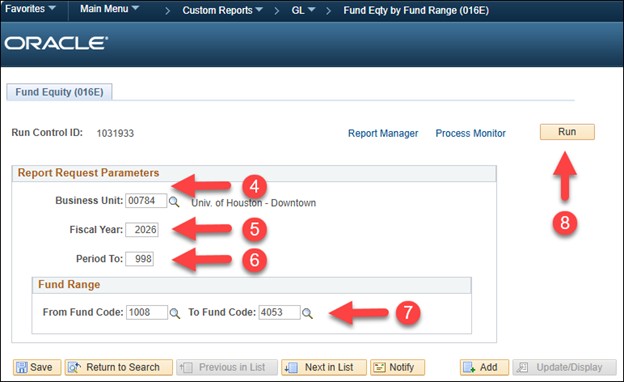
- Enter 00784, which is the UHD Business Unit in PeopleSoft Finance
- Enter the appropriate fiscal year
- Enter the appropriate Period To
- Enter the Fund Range
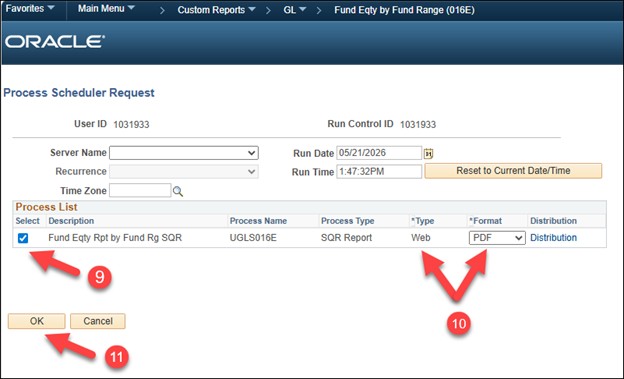
- Click Run.
-
- Make sure the report is selected
- Make sure Web and PDF are selected.
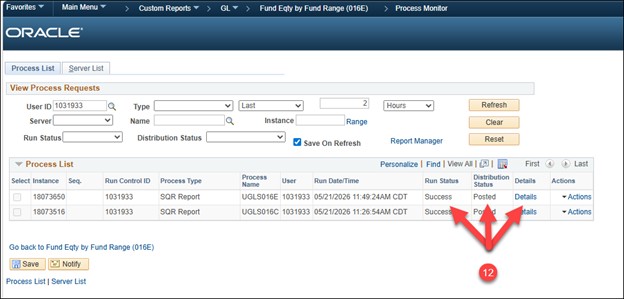
- Click OK. This will take you back to the 16 report parameters page, click Process Monitor
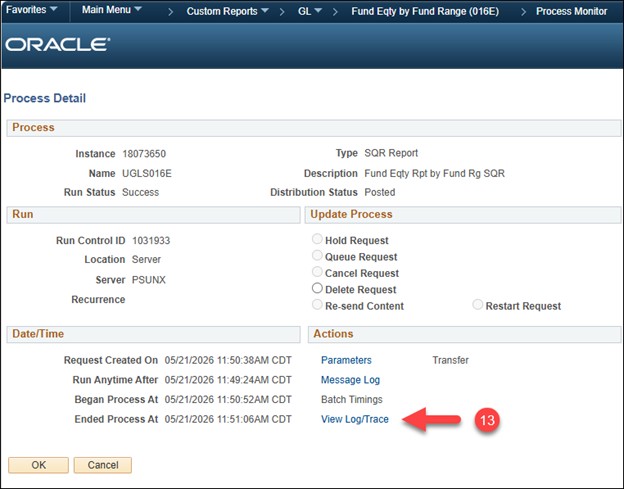
12. Look for a Run Status of “Success” and a Distribution Status of “Posted”. Click Details.
13. Click View Log/Trace.
-
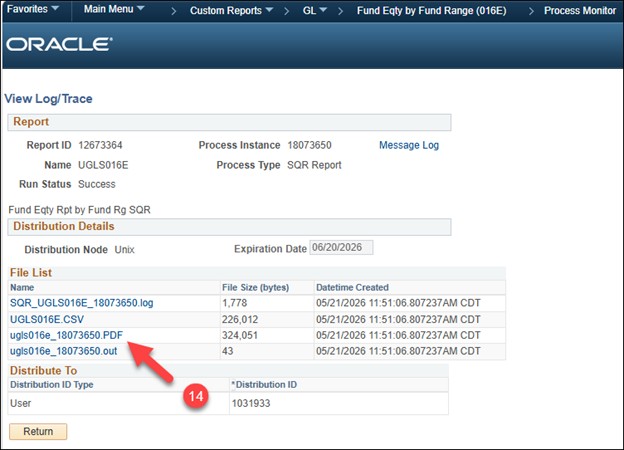
- Click the PDF file link to open the report in Adobe or click CSV to view the report in Excel.